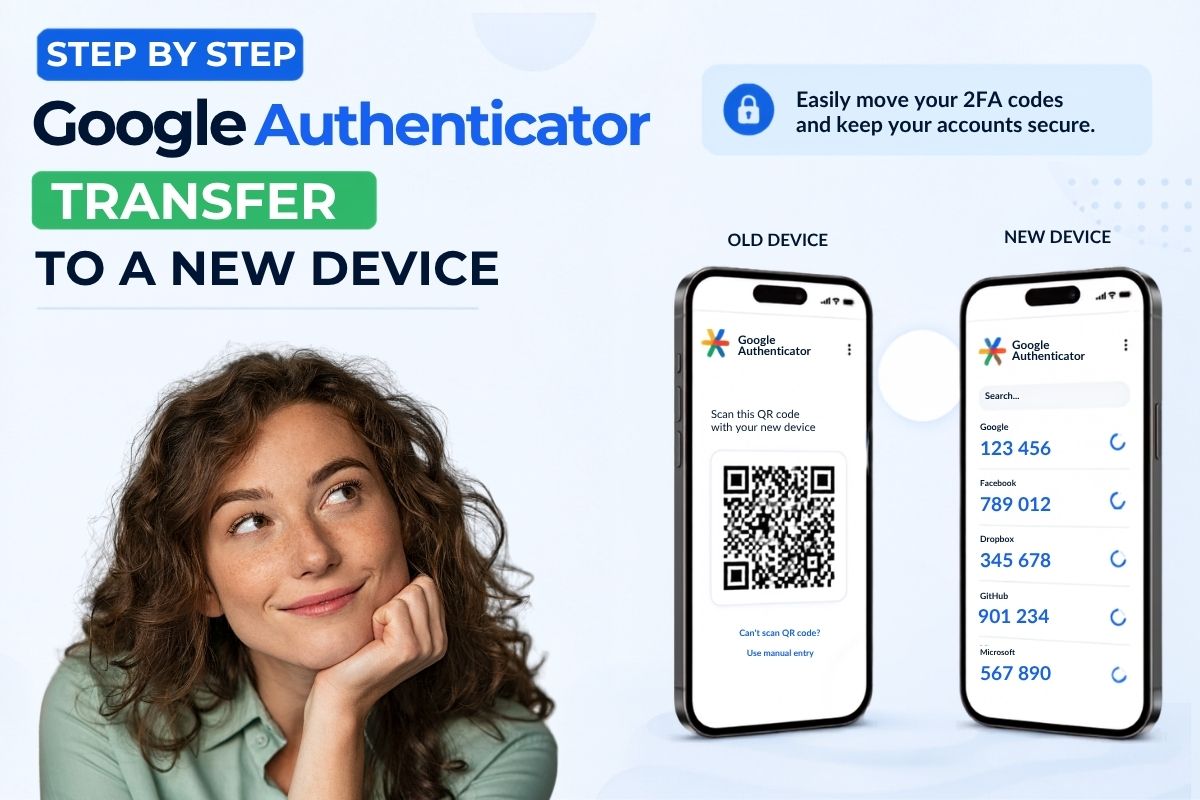
Got a new phone and worried about your two-factor codes? Don’t be. Figuring out how to use Google Authenticator transfer takes just a few taps.
There are two methods: scan a QR code between your two phones, or sign in to the same Google Account and let the cloud do the work. Either way, you skip the headache of setting up every single account from scratch.
Key Points
- Migrate your codes with a QR code or with Google Account cloud sync.
- The QR code trick even works between Android and iPhone.
- Cloud sync needs Android 6.0+ or iOS 4.0+.
- Your codes stay encrypted, both while moving and while sitting still.
- Test the codes on your new phone before wiping the old one.
What Does the Google Authenticator App Do?
Google Authenticator generates one-time codes for sites and apps that use 2-Step Verification. The codes reset every few seconds, so nobody can reuse them.
And users at Google Account Help highlight that you can still generate codes without an internet connection or mobile service. So even with zero bars, you’re covered.
Method 1: The QR Code Way
This one’s my favorite if you want to handpick which accounts to move or if you’re hopping from Android to iPhone without touching the cloud.
On your old phone:
- Open Google Authenticator.
- Tap the menu (three dots or lines) and hit Transfer accounts.
- Pick export accounts.
- Unlock your phone with your fingerprint, Face ID, or PIN.
- Check off the accounts you want to bring along, then tap Next.
- A QR code pops up. Got many accounts? The app might toss out more than one code.
On your new phone:
- Download and open Google Authenticator.
- Tap Get Started and sign in to your Google Account.
- Tap the menu, pick “Transfer accounts“, then “Import accounts”.
- Tap Scan QR code, then point your camera at the old phone’s screen.
Quick heads-up from the crypto exchange Bybit: If a moved code refuses to work, try syncing your authenticator instead. Once you scan, you’ll get a confirmation that everything transferred. iPhone users, you’ll tap OK on a little prompt too.
Also Read – How to Block Websites on Chrome Without Getting Bypassed
Method 2: Let the Cloud Handle It
Google lets you back up your codes straight to your account, which makes switching phones almost effortless. The only catch? You have to flip on backup first.
On your old phone:
- Open the app and tap your profile icon up top.
- See a checkmark in the cloud icon? You’re already backed up.
- If not, tap your email address, then hit Continue or Allow to save your codes online.
On your new phone:
- Grab the app and open it.
- Log in with the exact same Google Account.
- Your codes will appear immediately. If they’re hiding, close and reopen the app.
LifeWire writes that neither method makes you re-add all your accounts by hand. That’s a real time-saver when you’ve got a dozen logins piled up.
The Recovery Key Phrase Backup
No QR code useful? You can still add codes manually. Tap the + icon, choose Manual entry, and type your key phrase under Key. Name the account whatever helps you spot it later, especially if you’re juggling several. It’s a solid fallback when nothing else is working.
Also Read – The Best Coding Fonts For Programmers Nobody Talks About
Best Ways to Back Up Before You Switch
Losing your phone shouldn’t mean losing your accounts. Protectimus swears by a few backup habits, and honestly, they pair great with Google’s own tools:
- Backup codes: Google hands you one-use codes you can print out. Keep them locked away, though. Anyone with these plus your password is in.
- Screenshots of secret keys: Snap the setup QR code the moment you add an account. Stash it somewhere safe.
- Hardware token: A programmable token like the Protectimus Slim plays nice with Google, Facebook, GitHub, Dropbox, and more. Nobody can pull the secret key out of it, unlike a flimsy sheet of paper.
Just a note on the manual root method some sites push: it needs root access, and getting root can seriously damage your app security and open the door to viruses and errors. Skip it unless you really know what you’re doing.
Lock It Down With Privacy Screen
Want to feel more secure? Turn on the privacy screen. Head to Menu > Settings > Privacy Screen, switch it on, and finish the check. Now the app won’t open without a PIN, pattern, or biometric first. It’s simple, but it keeps nosy people out.
Lost or Stolen Phone?
If your phone gets lost or stolen, act quick. Use remote erase for iOS or Android to wipe the codes. If they’re synced, just remove the device from your Google Account.
If they’re not synced, you’ll have to visit every site and relink your new phone. And if you spot an “Accounts were recently exported” alert you didn’t trigger, reset your codes everywhere. That’s a red flag.
Also Read – How to Set Up Google Alerts
FAQs
How do I transfer Google Authenticator to a new phone?
Ans: Open the app on your old phone, tap the menu, and pick Transfer accounts, then Export accounts. Scan that QR code with the app on your new phone.
Can I move Google Authenticator without my old phone?
Ans: Yes, if cloud sync was already on. Just sign in to the same Google account on your new phone and your codes pop up.
Does the transfer work between Android and iPhone?
Ans: It does. The QR code export-and-import method jumps across both platforms with no problems.
Will my codes still work on the old phone after I transfer?
Ans: They will, unless you delete them. You’ll get a prompt on the old device asking to keep or remove the exported codes.
What if my transferred code won’t work?
Ans: Double-check that your device time is correct and synced. Still stuck? Turn on Google Account sync to refresh everything.
Are my Google Authenticator codes encrypted?
Ans: Yes. Google encrypts your codes both in transit and at rest, so they stay safe inside its systems.
Sources & References:
- Google Account Help – You can generate codes without an internet connection or mobile service.
- Bybit – If a transferred code refuses to work, try to sync your authenticator.
- LifeWire – You don’t have to re-add all your accounts manually.
- Protectimus – If you back up your account, it is very helpful to recover codes.