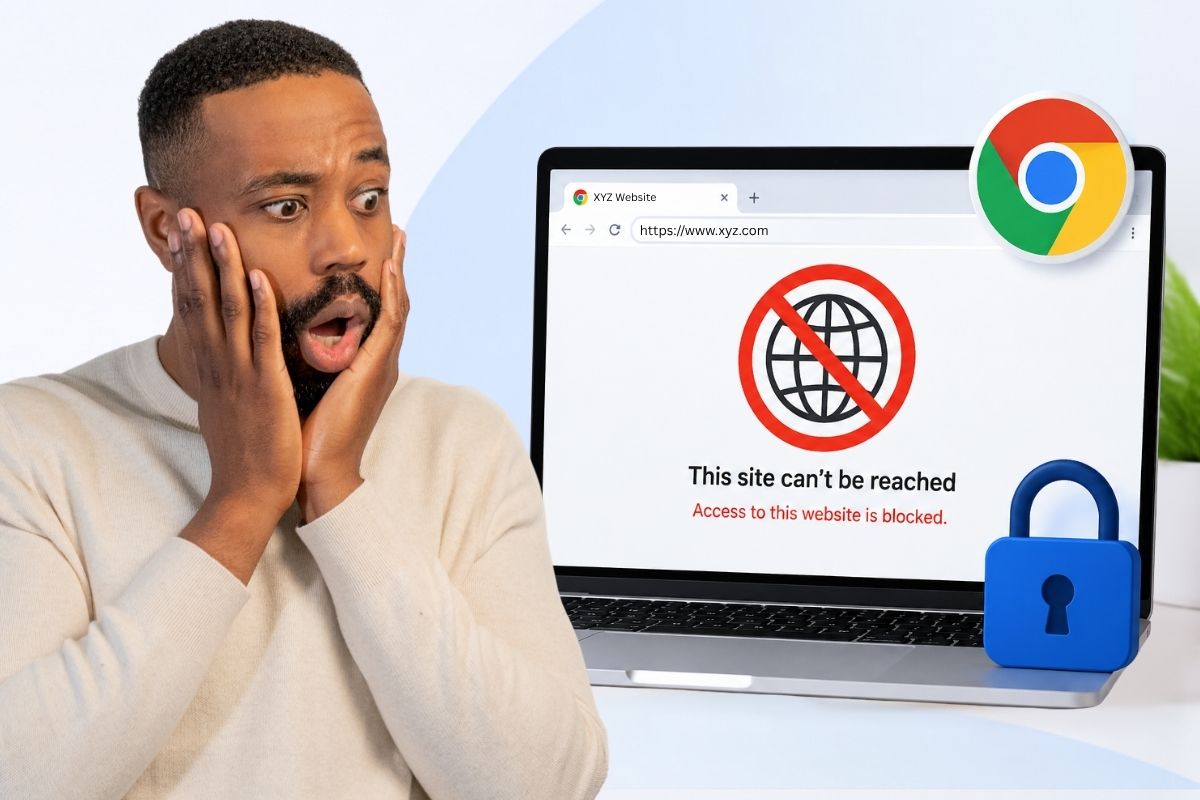
Chrome doesn’t have a built-in blocker. Yeah, it’s annoying. But you can block stuff in like two minutes – extensions, Family Link, editing your system files. It depends on what you’re doing. Kid’s device? That’s different from locking down your own computer. Go to Family Link. Want to focus on work? Extension. Need something your tech-savvy kid can’t hack around? System-level blocking.
- Chrome doesn’t have a native “block website” button, but multiple workarounds exist
- Browser extensions like BlockSite are the fastest method (under 2 minutes to set up)
- Google Family Link offers parental controls for child accounts across devices
- System-level blocking via the hosts file works across all browsers, not just Chrome
- Router and DNS filtering methods block sites for entire networks automatically
- Tech-savvy users can disable extensions; system-level methods are harder to bypass
Why You’d Actually Want to Block Websites
You know what’s wild? I sit down to check one email at 9 am, and suddenly it’s past lunch. Gone. Reddit, YouTube, whatever rabbit hole. And it’s not like I’m weak-willed or anything – it’s just that once you’re on the site, your brain stops working. You can’t click.
Maybe that’s not your problem. Maybe you’re the parent looking at your kid’s browsing and thinking… yeah, I don’t want to know what’s down that road. Either way, how to block websites on Chrome actually helps. Not as some magic fix, just – it’s way easier than trying to have self-control when the distraction’s sitting right there. Remove the site, remove the temptation, and it’s done.
How to Block Websites on Chrome: Your 5 Best Methods
Method 1: Use a Chrome Extension (Fastest)

This is the easiest option if you want results in under two minutes. BlockSite is one of the most popular options, with over five million users.
Here’s how:
- Open the Chrome Web Store
- Search for “BlockSite”
- Click “Add to Chrome” and confirm
- Click the extension icon in your toolbar
- Select “Block this site” on any page, or add URLs manually in settings
You can set schedules (block Reddit 9 am-5 pm), add passwords, and use “work mode.”
Just know: extensions only work in Chrome, and anyone who knows how can disable them.
Method 2: Google Family Link (Best for Parental Control)
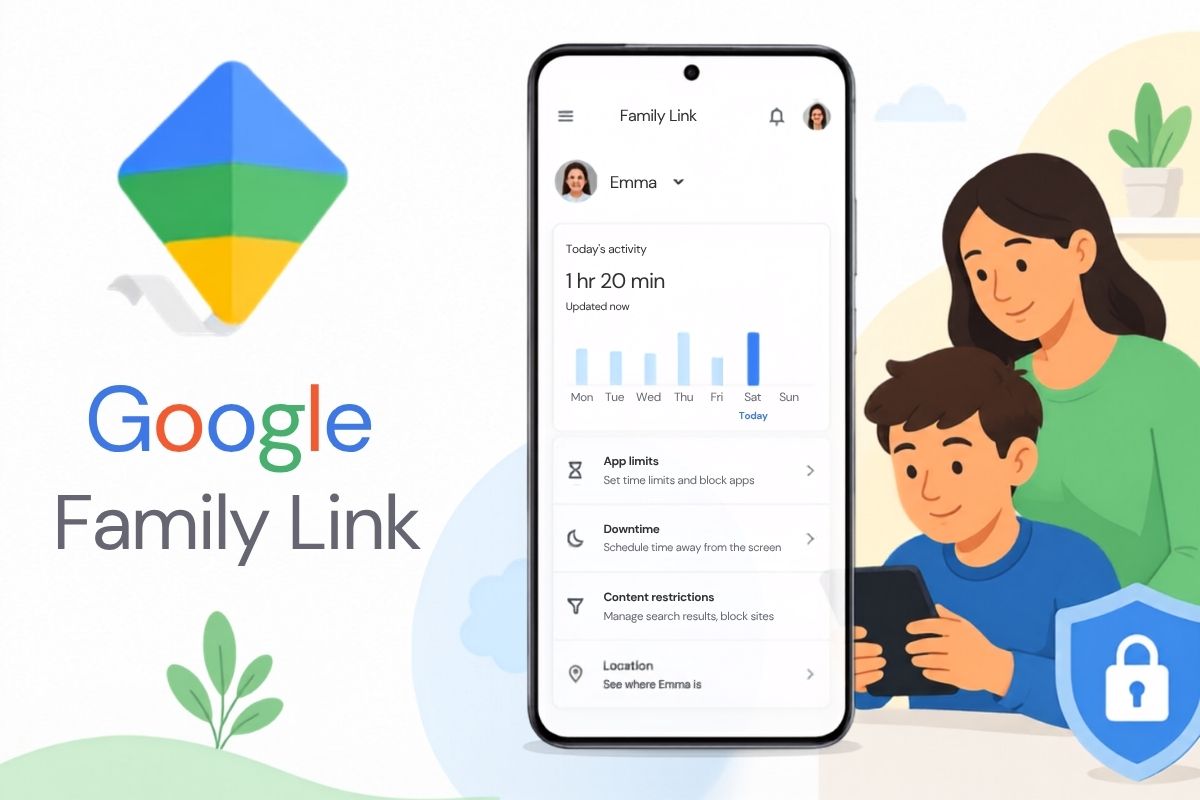
If you’re managing a child’s device, this is Google’s official solution. Google Family Link is a free app that lets parents manage their child’s Google Account and devices. Web Hosting Blog Setup:
- Download the Google Family Link app on your phone (iOS or Android)
- Create a supervised Google Account for your child through the app
- Have your child log in to Chrome with their supervised account
- Manage their browsing directly from your Family Link dashboard
Works on Android, ChromeOS, basically anywhere your kid logs in. And here’s the thing — it completely disables Incognito mode entirely, so they can’t use it as a loophole. Extensions can’t touch that level of control, which is huge because every kid thinks private browsing is their secret way around the rules.
Method 3: Edit Your Computer’s Hosts File (Permanent)
This method blocks websites system-wide – across Chrome, Firefox, Edge, everything. It’s more technical but nearly impossible to bypass.
On Windows:
- Open the Start menu, type Notepad, right-click it, and select Run as administrator.
- Click File > Open, then copy and paste this path into the top address bar: C:\Windows\System32\drivers\etc.
- Look at the bottom-right corner of the Open window. Change the dropdown menu from Text Documents (*.txt) to All Files (*.*).
- Select the file named hosts (with no extension) and click Open.
- Scroll to the very bottom of the file and add the following lines on new, separate lines:
text
127.0.0.1 example.com
127.0.0.1://example.com
Use the code with caution.
(Replace example.com with the actual website you want to block.
On Mac:
- Open Terminal (press Command + Space, type “Terminal”, and press Enter).
- Type sudo nano /etc/hosts and press Enter.
- Type your Mac’s administrator login password and press Enter (the letters won’t show as you type).
- Use the keyboard arrow keys to scroll down to the absolute bottom of the file.
- Type your block list using the same format as Windows:
text
127.0.0.1 example.com
127.0.0.1://example.com
Use the code with caution.
- Press Control + O to save, press Enter to confirm the filename, and press Control + X to exit the editor.
Method 4: Router-Level Blocking
Log into your router – it’s usually 192.168.1.1 – dig around in parental controls, throw the sites on the blocklist. Everything connected to that Wi-Fi is now blocked. Works for every device and browser on your network. Catch? As soon as they’re on mobile data, they’re gone; your network’s useless.
Method 5: DNS Filtering
Services like NextDNS let you block entire categories (social media, gaming, adult content) across all devices. NextDNS offers a free tier with up to 300,000 queries per month.
Quick Comparison Table
| Method | How Fast | Every Device | Easy to Bypass | Who Should Use It |
| Extension | 2 min | Chrome only | Yeah, pretty easily | Personal focus |
| Family Link | 5 min | Android, ChromeOS, PC/Mac Chrome | Hard (on supported devices) | Parents |
| Hosts File | 10 min | All browsers (this PC) | Needs admin access / disabled Secure DNS | System-wide lock |
| Router | 5 min | Whole network (Wi-Fi) | Easily via VPN or Mobile Data | Household blocking |
| DNS Filtering | 5 min | Network or configured device | Hard if the app is admin-locked | Whole network control |
FAQs
Can kids disable a Chrome extension I installed?
Yeah, if they know how. Most tech-savvy kids will figure it out eventually. Family Link, the hosts file, and router blocking are way harder to get around.
Will blocking work in incognito mode?
Extensions don’t work by default, and Family Link fixes this by completely disabling Incognito mode so kids can’t use it. Router blocking, DNS filtering, and the hosts file naturally work in Incognito. To enable a productivity extension in Incognito: go to chrome://extensions, find your blocker, click Details, and toggle “Allow in Incognito.”
What if someone switches to a different browser?
Router and DNS filtering block across all browsers. The hosts file does too. Extensions only block in Chrome.
How do I block a site temporarily instead of permanently?
Extensions have scheduling – block Reddit 9-5 weekdays, done. Hosts file, though? You’re manually editing it every single time. Not gonna happen.
Sources & References
- Google Chrome Support (Official)
- Security.org – (Feb 5, 2026)
- ESET Blog – (April 22, 2026)
- Freedom.to Blog – (May 22, 2026)
- BrowWWSer – (Feb 13, 2026)
- Safety Detectives – (Dec 12, 2025)
- Bluehost Blog – (Jan 19, 2026)
- MultiCare Technical