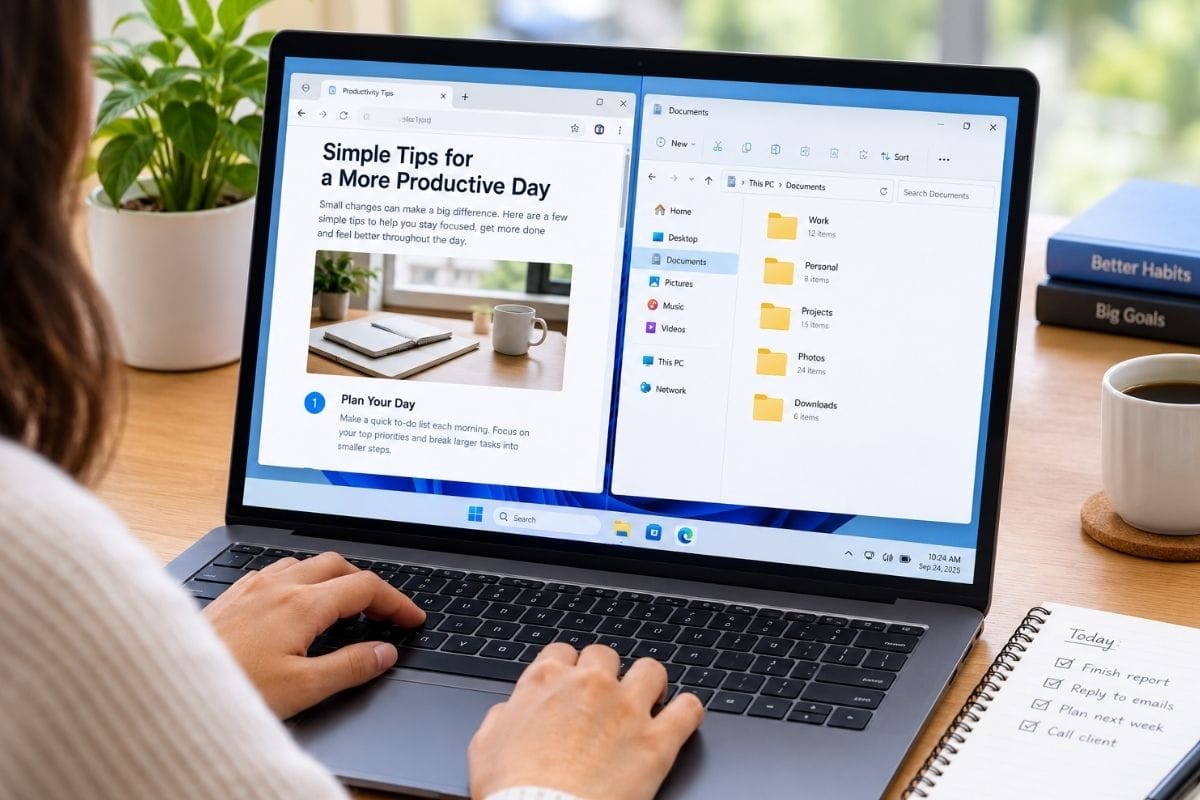
Quick Answer: Press the Windows key + Left Arrow or Windows key + Right Arrow. Your window will take up half the screen. Then click one of the thumbnails that shows up to fill the other half.
Alt+Tab. Alt+Tab. Alt+Tab again, because you blinked and lost the number you were copying. We’ve all done the window shuffle. And every time, your PC has a fix built in. Once you know how to use split screen on Windows, you won’t want to go back. It’s been around since Windows 7, by the way.
- Snap is a built-in feature in your PC. Free. No need to download it.
- Windows 11 gives you Snap Layouts: two, three, or four grids.
- Windows 10 uses Snap Assist and edge dragging.
- Keyboard shortcuts snap windows without touching the mouse.
- Settings > System > Multitasking is where you control it.
- A note from Microsoft says, “Support for Windows 10 has ended on October 14, 2025.”
What is a Split Screen?
Assume your monitor is a pizza. Split screen slices it. Each slice gets an app. You work on both at once. HP says split screens boost productivity, focus, side-by-side comparison, and workflow by letting you drag files from one app to another without losing your place.
How to Use Split Screen on Windows 11
According to Microsoft, Windows 11 calls the feature Snap Layouts.
- Float your mouse over the Maximize icon, top right of any window.
- A panel slides out. You can choose between two halves, a three-column grid, or a four-square grid.
- Click the zone you want your window in.
- Snap Assist shows big thumbnails of everything else open. Click one per empty zone.
Windows key + Z brings up the same menu. Use the arrow keys to pick. Enter to lock it in, and then choose your apps. Or just drag. Grab the title bar, haul the window to the very top of your screen, and the layout menu drops down. Drop it where you want.
Users often forget that the second layout gives one window extra width and sticks it on the left. This is ideal when your main app needs more space and your notes don’t.
How many layouts do you get? Depends on your screen. ZDNET counted four on a 13-inch laptop. Ultrawide monitors show more.
How to Use Split Screen on Windows 10
Windows 10 relies on Snap Assist.
- Open two or more apps.
- Click and hold the title bar of one app.
- Drag it to the left or right edge until a faint vertical bar shows down the middle.
- Release. Half the screen is yours.
- Thumbnails appear on the other side. Pick one.
Want three or four? Snap the first window to the right with the Windows key + Right Arrow. Grab the second, and it lands left. Hop back to the first, press Windows key + Up Arrow, and it slides into the top-right corner.
Back to the second window: Windows key + Down Arrow, then Windows key + Right Arrow, and it’s in the bottom-right. Click a thumbnail on the left side. Then select that left window, press Windows key + Up Arrow, and click your final thumbnail. It drops into the bottom left.
There is also a trick. Right-click the taskbar. Show windows stacked puts them in columns, one above the other. Show windows side by side and line them up as rows. However, on a small laptop with only a couple of windows open, the two options look nearly identical.
Split Screen Keyboard Shortcuts
| Shortcut | What it does |
| Windows key + Left Arrow | Snaps left |
| Windows key + Right Arrow | Snaps right |
| Windows key + Up Arrow | Maximizes, or bumps, a snapped window to a top corner |
| Windows key + Down Arrow | Minimizes, or restores if maximized |
| Windows key + Z | Snap Layouts (Windows 11) |
| Windows key + Tab | Task View |
| Windows key + Ctrl + D | New virtual desktop |
| Windows key + Ctrl + Left/Right | Jump between desktops |
| Windows key + Home | Minimizes everything but the active window |
| Windows key + I | Settings |
Split Screen on Windows 8.1 and Windows 7
Windows 7 introduced Snap, which is enabled by default. Drag a window left, let go, and drag the second one right. That taskbar trick, Show windows side by side, works here too.
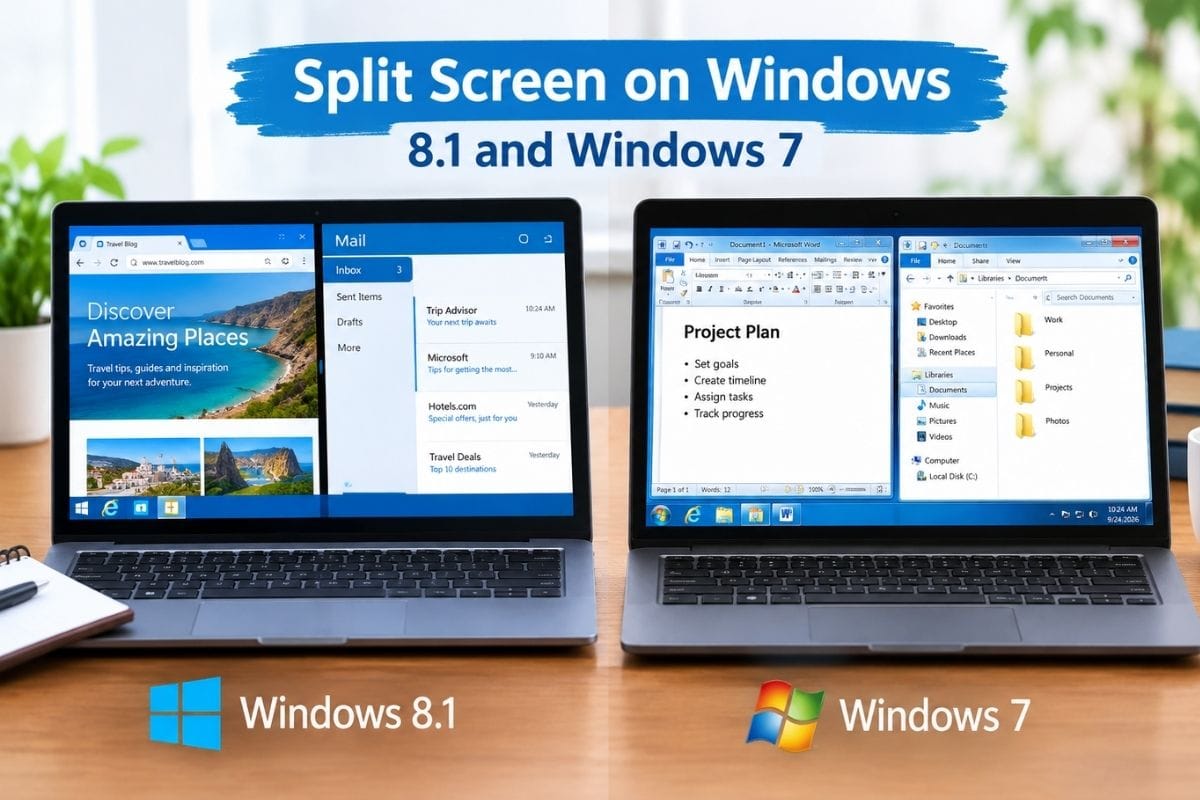
Windows 8 and 8.1 figured everybody owned a touchscreen. Lifewire points out that touch users swipe in from the left and hold until the window docks. In 8.1, dragging the divider resizes just one window, not both like 10 and 11. And if your resolution is high enough and your video card can keep up, three windows will fit.
Resizing and Getting Out
See the line between your snapped windows? Hover there. When the cursor turns into a double arrow, drag it. Both windows resize together.
Escaping is even easier. Computer Hope says just maximize one window with the icon at its top-right corner. Or shove a window’s border to the screen edge until it swallows everything.
Make Snap Work Your Way
Press the Windows key + I, then go to System > Multitasking. Switch Snap windows on. The checkboxes below control the following options:
- Snap automatically when dragging to a screen edge
- Show what you can snap next to a window
- Auto-size a snapped window to fill available space
- Resize adjacent snapped windows at the same time
Kill that last one if you want a window frozen in place while you fiddle with the other. Life-saver when you’re eyeballing a report that shouldn’t budge.
Desktops and Second Monitors
The Windows key + Tab opens Task View. Click New Desktop. Drag app thumbnails between desktops. Each one holds its own split-screen setup, so chat and calendar live on desktop one while real work happens on desktop two.
Two monitors? Windows key + P, then pick Extend. Your desktop stretches across both and Snap runs on each screen on its own. That same menu also offers Duplicate (especially useful for projectors), PC screen only, and Second screen only.
In Windows 11, Settings > System > Display > Multiple displays adds two handy toggles: remember window locations based on monitor connection and minimize windows when a monitor disconnects. Undock your laptop, re-dock it, and everything snaps back where you left it.
When Split Screen Stops Working
Ace Magic lists the usual troublemakers: Snap windows switched off, an outdated or incompatible display driver, updates sitting unfinished, stubborn apps like games or legacy software that refuse to resize, a corrupted user profile, and third-party tools hijacking Snap.
Try this, in order:
- Settings > System > Multitasking. Snap windows on. Check every sub-option.
- Device Manager > Display adapters > right-click your graphics card > Update driver.
- Run Windows Update.
- Restart.
Still not working? Close background apps hogging memory, and check your display scaling if Windows keeps snapping to goofy sizes.
Who Actually Benefits
Students: research left, essay right. Analysts: two spreadsheets, zero scrolling. Developers: code on one side, live preview on the other. Video editors: timeline and asset library together. Email addicts: inbox always in view. Basically, anyone with more than one thing to do.
Conclusion
One monitor, two brains. That’s what split screen feels like after a week. Learn the Windows key + Left and the Windows key + Right. Spend five minutes in multitasking settings. Then stop losing windows forever.
FAQs
1. How do I split my screen into two on Windows?
Ans: Drag a window to the left or right edge until an outline shows up, then let go. Windows offers thumbnails of your other apps. Click one to fill the other half.
2. What is the shortcut for split screen on Windows?
Ans: The Windows key + Left Arrow or Windows key + Right Arrow snaps the active window. Hit the opposite arrow key to move it back or restore it.
3. Can I split my screen into four windows?
Ans: Yes, you can. Snap a window to one side, then press the Windows key + Up Arrow or Down Arrow to tuck it into a corner. Repeat until all four spots are taken.
4. Why isn’t split screen working on my computer?
Ans: Nine times out of ten, Snap windows is off, or your display driver is stale. Head to Settings > System > Multitasking, flip Snap windows on, then check for driver and Windows updates.
5. Does split screen still work on Windows 10?
Ans: Yes, Snap Assist works fine. But free updates and security fixes for Windows 10 stopped on October 14, 2025, so Windows 11 is the smarter move.
6. Can I split the screen across two monitors?
Ans: Press the Windows key + P and choose Extend. Your desktop spreads over both screens, and you can snap windows separately on each one.
Sources & References:
- HP – Split screens help productivity, focus, side-by-side comparison, and workflow.
- ZDNET – You can only split 4 screens in a 13-inch laptop.
- Microsoft – Windows 11 calls the feature Snap Layouts.
- Ace Magic – There can be various troublemakers that can stop split-screen from working.