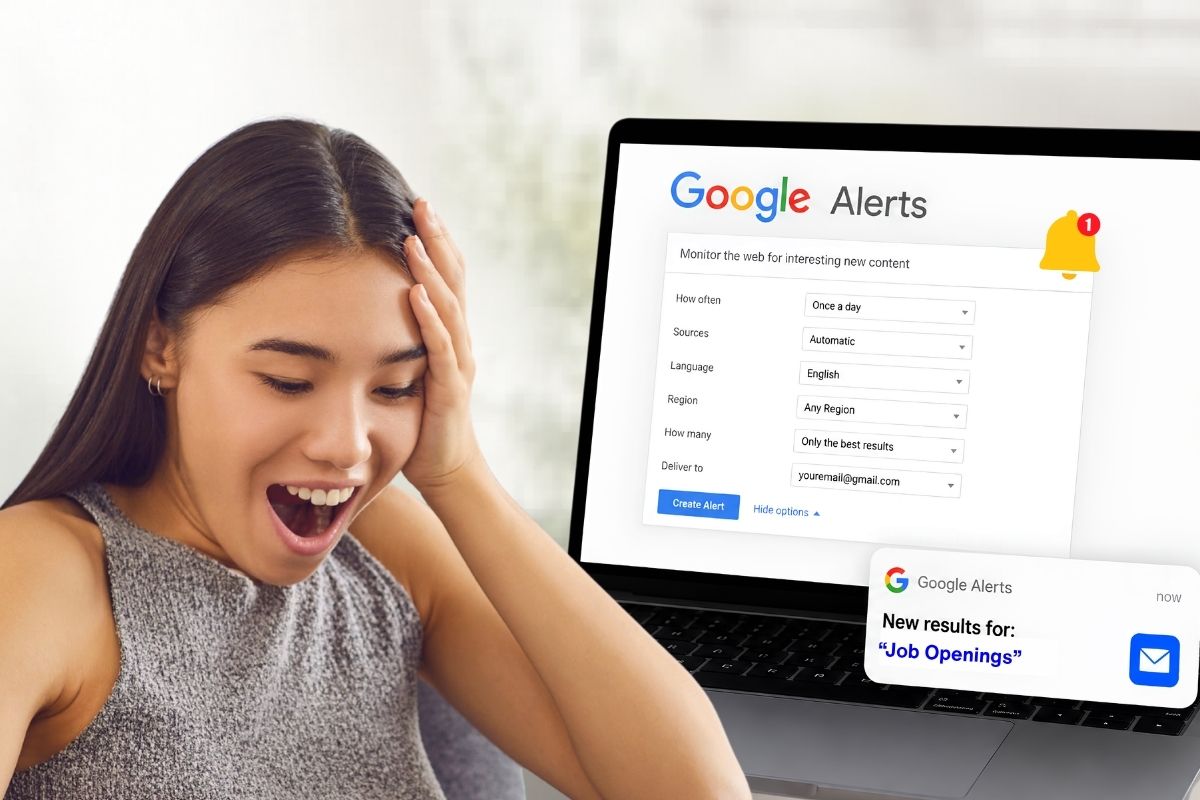
Tired of refreshing Google to catch who mentioned your name or brand? There’s a smarter way. Learning how to set up Google Alerts lets the search engine do the digging for you.
It’s free, it takes about a minute, and fresh results land right in your inbox. Whether you run a blog, a business, or just want to follow a topic, it works quietly in the background while you get on with your day.
- Google Alerts is free and has been around since 2004.
- You need a free Google account to get started.
- The Google Alerts setup runs in three quick steps.
- You can filter by source, language, region, and frequency.
- Search operators make your alerts sharp and simple.
How to Set Up Google Alerts in 3 Steps
The Google Alerts setup is simple. Here’s the short version, pulled straight from Google Search Help:
- Go to google.com/alerts.
- In the box at the top, type a word, topic, or phrase.
- Click Create Alert.
That’s it. You’ll now get emails whenever Google finds matching results. Want more control first? Click Show options before you commit.
Change Your Google Alerts Settings
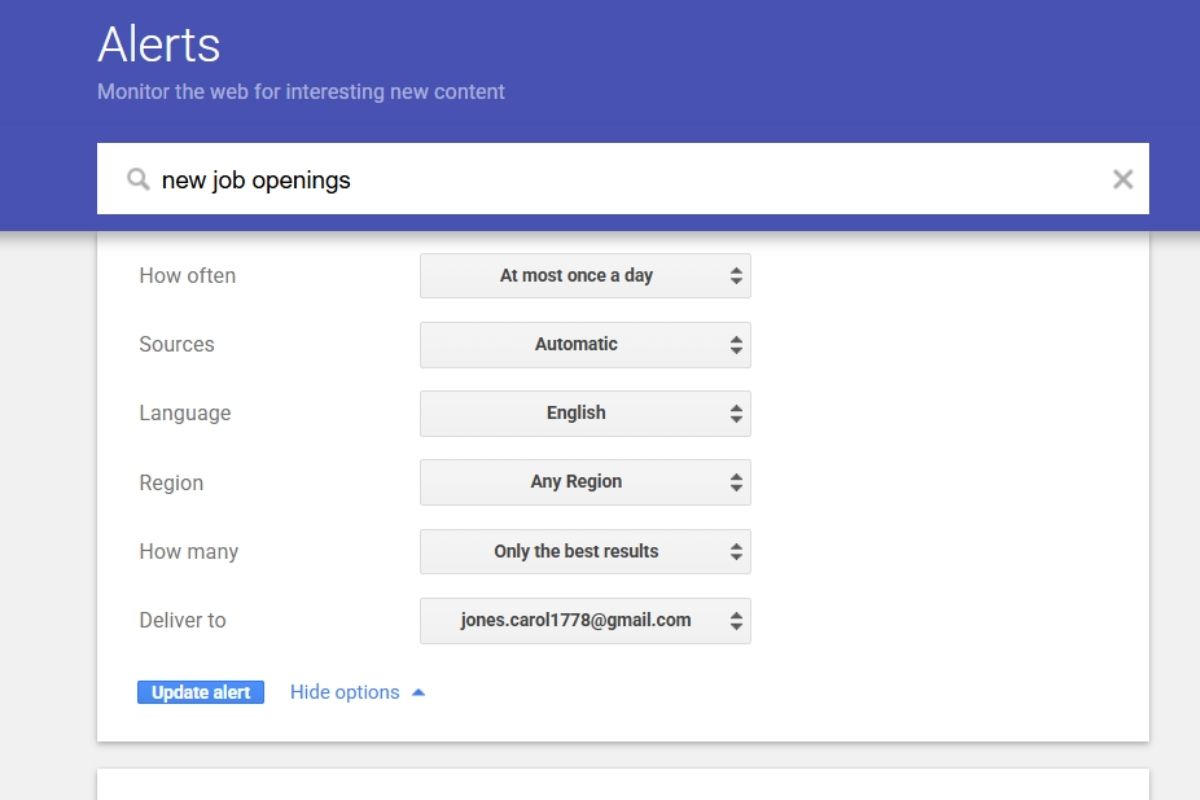
Click “Show options,” and you’ll see a handful of choices. These Google Alerts settings shape exactly what shows up in your inbox:
- How often: As it happens, at most once a day, or at most once a week.
- Sources: Automatic, news, blogs, web, video, books, discussions, or finance.
- Language: Any, English, plus 45 more.
- Region: Any or one specific country.
- How many: Only the best results, or all results.
- Deliver to: An email or an RSS feed.
Tap “Automatic” for sources and you’ll hear about everything. There’s also a gear icon in the corner. Click it to set a delivery time and turn on Digest, which wraps all your alerts into one tidy email. Both keep your inbox from getting buried.
Also Read – FBI Warns Chrome, Edge, Safari Users to Avoid These Sites
How Do Google Alerts Work?
The folks at SEObility explain it well: when Google adds new pages to its results, the algorithm sorts them by keyword. If you’ve got an alert for one of those keywords, Google emails you the link. The message shows a snippet, just like a normal search result, and clicking it takes you straight to the page.
Improve Your Alerts With Search Operators
A Google Alert is basically an automatic search. So any trick that works in a regular search works here too. The team at Ghost shares some smart ones:
- Use – to exclude words (pizza –pepperoni).
- Use @ for a social platform or # for a trend.
- Wrap a phrase in “” for an exact match.
- Add intitle: or site: to target results.
- Drop a * as a wildcard when you’re not sure what to track.
5 Google Alerts to Set Up First
Not sure where to begin? Common Google Alerts use cases include these five:
- Your full name. Use quotes for accuracy, like “Jane Doe” OR “Jane S. Doe” OR “Jane Sarah Doe”.
- A weekly keyword digest. Be specific (“budgeting tips” beats “personal finance”), then set it to weekly.
- Your company. Type the brand name and limit sources to news if you want.
- Niche questions. Try [topic] + site:[website.com] + intitle:(who|what|when|where|how) to surface posts worth answering.
- Wildcards. Pop in a * when you want Google to fill the blank.
Fixing Alerts That Won’t Show Up
Set everything up but hear nothing? Run through this checklist. First, make sure you’re signed in to the right Google account.
Next, check your alert isn’t disabled, and click “Enable” if it is. Then look at your email: confirm your inbox isn’t full, peek in your spam folder, and add googlealerts-noreply@google.com to your contacts so Gmail trusts it.
Editing, Updating, and Deleting
To make a Google Alerts update, click the pencil icon next to the topic, change what you need, and save. To remove one, click the trash icon.
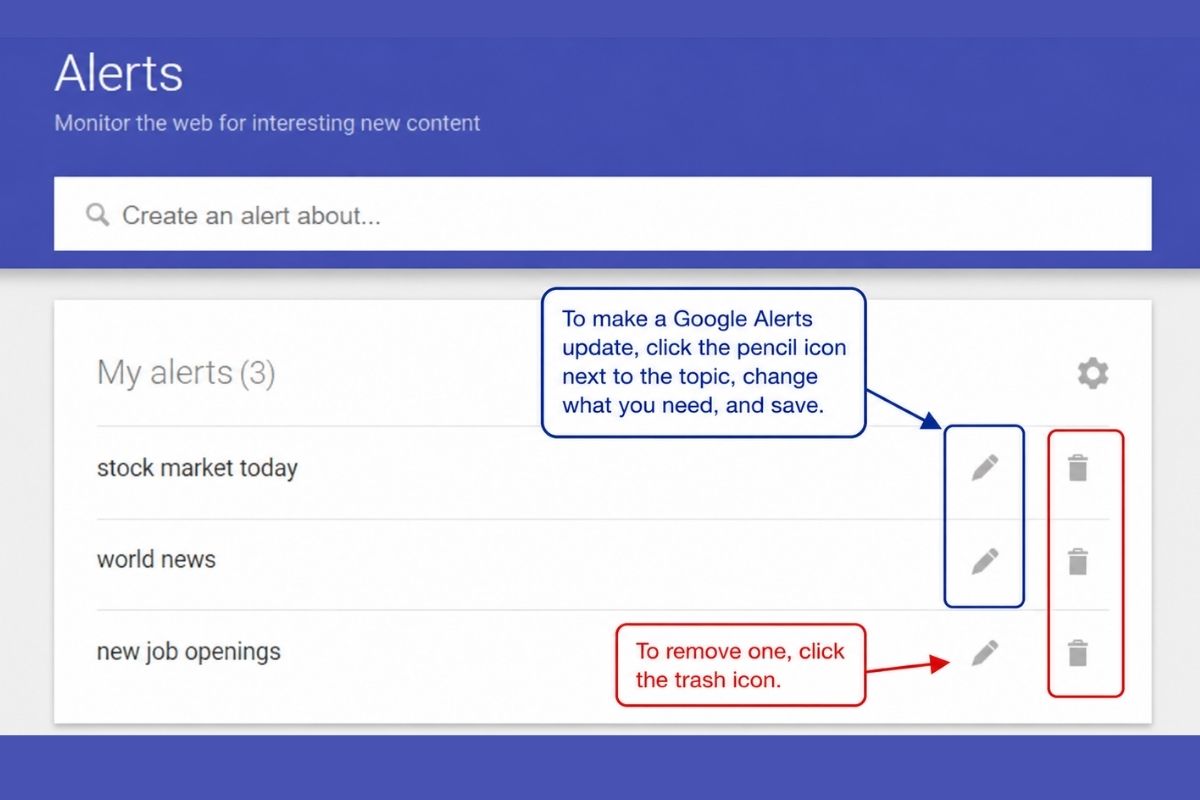
No confirmation pops up, but a yellow Undo bar appears for a few seconds if you slip. Every alert email also carries links to edit or unsubscribe.
Managing Google Alerts For a Team
Run a company account? Google Workspace lets admins control access. Their admin guidance shows how to turn the service on or off for everyone, for certain organizational units, or for specific access groups. Users with it switched off can still unsubscribe, just not much else.
Also Read – How Small Businesses Can Scale Without Losing Their Brand Identity
Why Alerts Matter For SEO
Alerts won’t boost your rankings, but they’re a handy monitoring tool. Watch your name, your brand, your competitors, or a topic, and you’ll always know what’s being published.
It’s also great for reputation management and marketing, so you can react fast to rumors and keep positive results up top.
Yes, completely free. The service has run since 2004. All you need is a free Google account to start tracking topics.
Click the pencil icon next to your topic on the alerts page. After making changes, click Update Alert to save them.
Click the trash icon beside the keyword. There’s no confirmation step, but you can hit Undo within seconds or unsubscribe from any alert email.
Yes. Click the gear icon and enable Digest. Google will combine all alerts into a daily or weekly email.
Google Alerts do not directly affect rankings. However, they are useful for monitoring mentions, competitors, and your online reputation.
Sources & References:
- Google Search Help – You just have to follow three steps to set up Google alerts.
- Google Workspace – You can manage Google alerts for a team at Google Workspace.
- Ghost – You can also improve your alerts with search operators.
- SEObility – When Google adds new pages to its results, the algorithm sorts them by keyword.