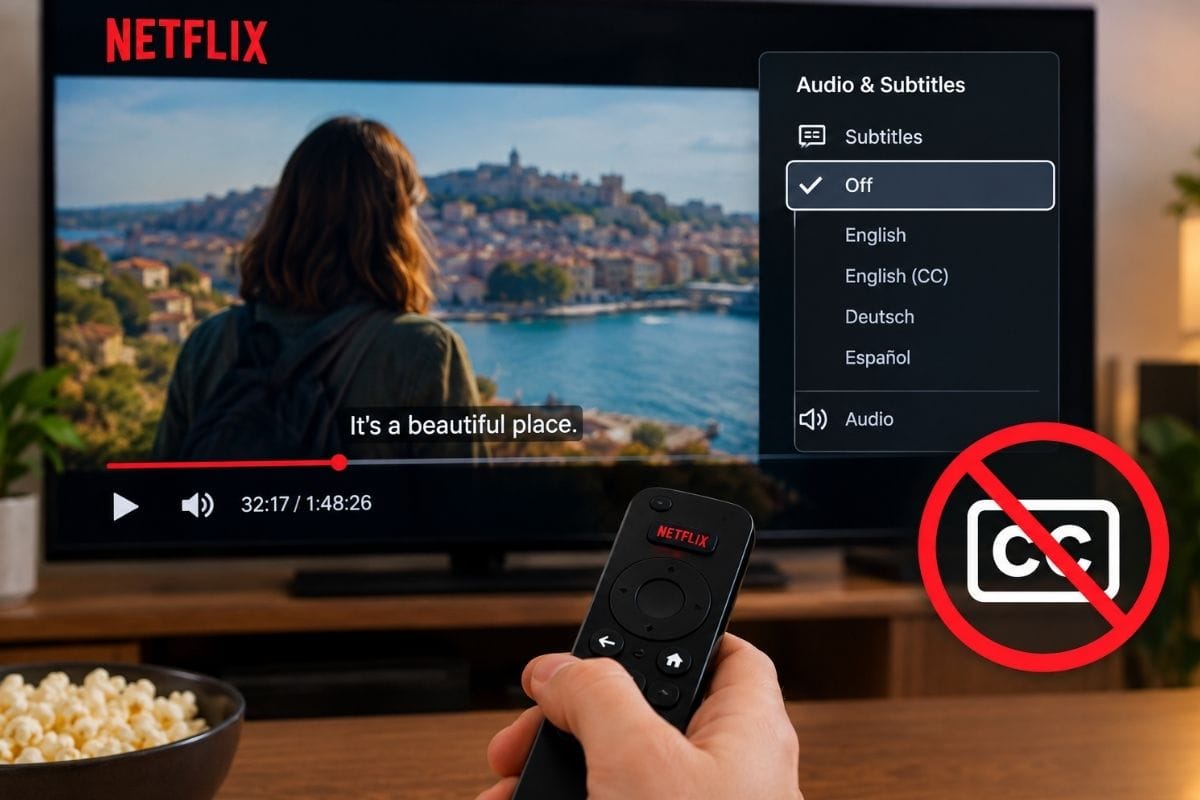
Quick Answer: Press play, open the Audio & Subtitles menu, and turn them off. So if you’re wondering how I turn off the subtitles on Netflix, it’s the same menu on every device, just hiding in a different spot.
- Audio & Subtitles is the only menu you need.
- On a phone and laptop, tap the screen or wiggle your mouse.
- On a TV or console, press up or down on the remote.
- Roku makes you do it before you press Play.
- Sometimes the text won’t budge, and that’s not on you.
The One Menu That Runs the Show
Netflix built it the same way everywhere. The official Netflix Help Center explains where to look. On phones, tablets, and computers, tap or click the screen. On a smart TV, Blu-ray player, cable box, gaming system, or streaming media player, press the up or down arrow. On Apple TV, swipe up or press the up arrow.
Then grab audio & subtitles from the top or bottom of the screen. On some TVs, the languages are at the bottom with no icon. Pick one, or hit Other for the full list.
A wikiHow guide notes the icon looks like a little text box, sitting next to Playback Speed. Languages vary by title due to licensing, and downloads show only the two most relevant ones.
Turn Off Netflix Subtitles on iPhone, iPad, or Android

Start your show and tap the screen. The dialogue icon appears bottom right, reading Audio & Subtitles. Tap it, choose Off, then tap the X. Android is identical. Business Insider says that turning off subtitles will turn them off for everything, not just that episode, until you switch them back on.
How to Turn Off the Subtitles on Netflix on a Computer
Netflix runs in Chrome, Edge, Firefox, Opera, and Safari on Mac. Play something, move your mouse, and look bottom right for the text box icon. Hover over it, and the menu pops out. Click Off. Digital Trends points out that Mac and PC behave the same here, and this area is also where you swap the audio language.
Roku, Chromecast, and Blu-ray Players
Roku is the only one that works this way. You handle it on the description page before playback: choose Audio & Subtitles, pick Off, press back, then hit Play.
For Chromecast and Google TV, press down on the remote mid-show (or tap the screen on an older Chromecast), hover over the dialogue icon or select Audio & Subtitles, and pick Off. Tap OK or the X to carry on.
For Blu-ray players, press down while something plays, highlight the dialogue icon, and choose Off. Fair warning: hundreds of models exist, so yours may differ slightly.
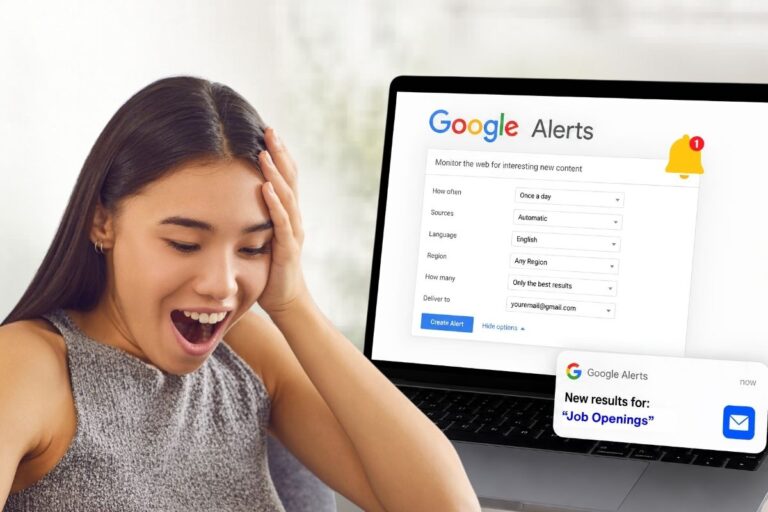
Also Read – How to Set Up Google Alerts and Stop Chasing Updates Online
Apple TV Takes a Different Route
Netflix now says “swipe up” or press the up arrow. Older guides say swipe down, which still works on many remotes. Apple TV 2 or 3? Hold the center button instead. Open the Subtitles tab and select Off.
Text still there? Open Settings > General > Accessibility and turn the Accessibility Menu on. Play your show, hold the Menu button (or swipe down on an Apple TV 4 remote or later), scroll to Closed Caption, and click it so the checkmark disappears.
Xbox, PlayStation, and Other Consoles

On Xbox One, select a video, and a menu appears on the left. Highlight Audio and Subtitles, tap A, select Off, and tap A again. Already watching? Tap B to pull the menu up.
On PS4, press down on the right joystick, select Audio and Subtitles with X, highlight Off, and confirm with X. PS3 is identical. Still there? Blame the console. Xbox One: Settings > Ease of access > Closed Captioning > Closed Captioning Off. Xbox 360: Settings > System > Console Settings > Display > Closed Captioning > Off.
Outdated Versions of Netflix Apps Work Differently
Sony’s support pages cover the procedure, since it depends on your app version. On the latest one: pick a title, select Audio & Subtitles from the options panel, choose your setting, press Back, then Play.
Some Sony products let you do it mid-show: Press the up arrow and select the Dialog icon. No Dialog icon? Press down instead.
On an older version, start the title, then press the Subtitle or CC button, or the down arrow twice. Select Audio & Subtitles, then Subtitles. Some devices stuck on very early versions don’t support captions at all.
When Subtitles Refuse to Turn Off
Sometimes it’s off, and text shows up anyway. That’s deliberate. Scenes with dialogue in a language other than the title’s original one get forced subtitles. Shows made in another region may default to your region’s main language too.
Kids’ titles are the other headache. Preferences aren’t saved when you watch most kids’ titles from an adult profile. The fix: play something rated Teens or above for two to three minutes with your settings how you want them.
Got a 2011 or 2012 Samsung Smart TV? Setting subtitles to None may not work. Netflix says to stream from another device, since only those old versions break this way.
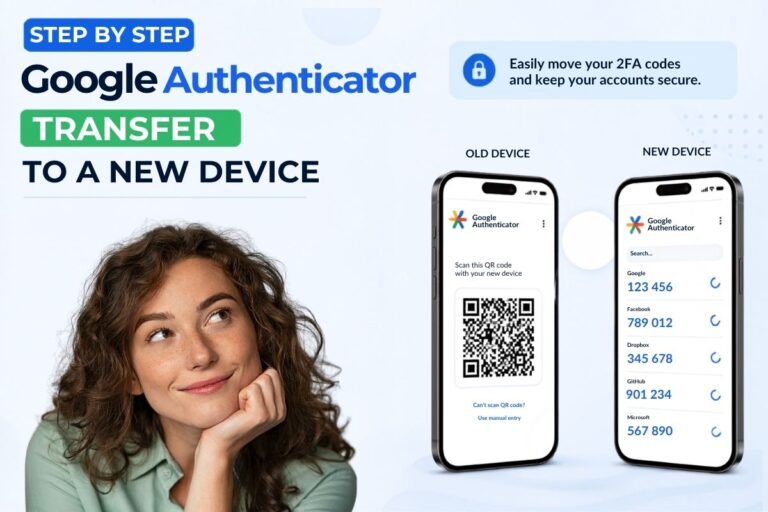
Also Read – How to Use Google Authenticator Transfer to a New Device
Prefer Small Text Instead?
You don’t have to kill them completely. On the web, open your account page, select Profiles, choose a profile, and then select Subtitle appearance. Change the font, size, shadow, and background color, then save.
It’s not offered in some countries where Arabic or Hebrew is the primary language, and older devices may ignore it. On a TV, go to Settings > Get Help > Reload so it takes effect, or pause a show, open the player controls, and select Settings for Size and Style. No Settings option means your device can’t do it.
On Android, tap My Netflix, select your profile name, then Manage Profiles, choose a profile, and finally tap Subtitle Appearance. Restore Default Settings undoes it, and the change only applies to that device. For Apple gear, Netflix points you to Apple Support.
Want the fuller version? Look for the SDH badge on a title’s page. SDH covers sounds and music too, though not every season has it.
FAQs
1. Why do subtitles keep coming back on Netflix?
Ans: Usually a kids’ profile that won’t save your choice, or a TV or console caption setting overriding the app.
2. Does turning off subtitles affect all my shows?
Ans: Yes. Switch them off once, and they stay off until you turn them back on.
3. Why can’t I turn off subtitles on some movies?
Ans: Foreign-language dialogue triggers forced subtitles you can’t disable. Titles from other regions may default to your language too.
4. Where’s the subtitle button on my remote?
Ans: Press the up or down arrow while something plays. Some older remotes have a subtitle or CC button.
5. Do subtitle settings sync across devices?
Ans: Appearance settings saved on the web follow your profile. Android app changes stay on that phone or tablet.
6. What’s the difference between subtitles and SDH?
Ans: Subtitles show spoken dialogue. SDH adds sound effects, music cues, and speaker labels for deaf and hard-of-hearing viewers.
Sources & References:
- Sony – On the outdated version of Netflix, the setting to turn off the captions is different.
- Digital Trends – Mac and PC have the same steps to turn off the subtitles.
- Business Insider – Once you turn off subtitles, it will turn them off for everything.
- wikiHow – The icon looks like a little text box, sitting next to Playback Speed.